
How to Use the Calendar
There are two primary ways to view events in the UMaine calendar. The default view is Calendar–a list-style display of events for the current month:

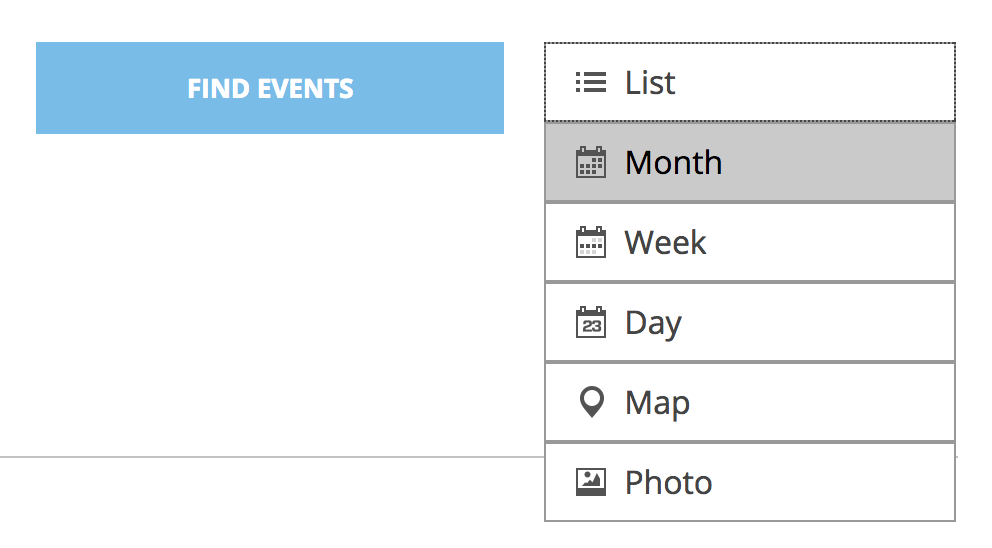
You can switch to a Month or Grid view of events by clicking the month view button above the event list:
Events are grouped into major categories, a list of which can be found at the top of the site. This also where you’ll find a search bar to search events by keyword:

When browsing All Events, the Calendar View only lists the first three days’ events in chronological order–this is to conserve space given the large number of events in the calendar. If there are more than three events for a given day, a “View all Events” link will appear next to the date. Clicking on the link will present you a list view of the days events.

Clicking an event’s title will bring you to a page with all the details, including date and time, venue, contacts, a map to the location, costs and options to add the event to your own calendar or share the event via Facebook, Twitter, StumbleUpon or e-mail:
